> ## Documentation Index
> Fetch the complete documentation index at: https://huddleup-sports.com/docs/llms.txt
> Use this file to discover all available pages before exploring further.
# HuddleUp New Parent Signup Guide
> Step-by-step walkthrough for new parents joining HuddleUp Sports for the first time. Install the app, create an account, enter your organization code, add players, assign to leagues, and explore the calendar, teams, chat, and settings.
A complete walkthrough for parents signing up for HuddleUp Sports for the first time.
## Install the App
 Download **HuddleUp Sports** from the [iOS App Store](https://apps.apple.com/us/app/huddleup-sports/id6752121332) or [Google Play](https://play.google.com/store/apps/details?id=com.huddleup.app). You can also use the [web app](https://app.huddleup-sports.com) from any browser.
## Create Your Account
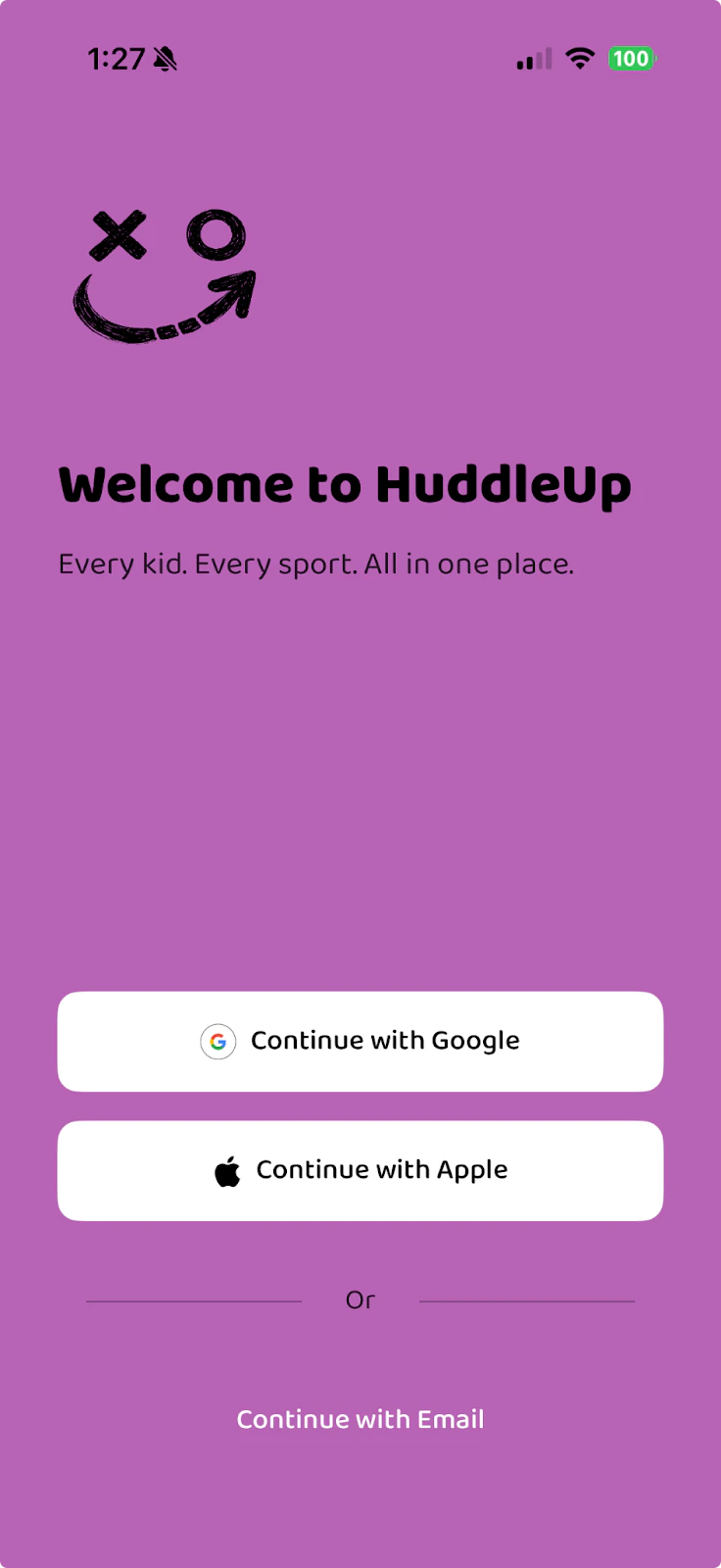
Open the app and sign up using one of these options:
* **Continue with Google** — Use your Google account
* **Continue with Apple** — Use your Apple ID
* **Continue with Email** — Sign up with any email address
Remember which sign-in method you choose — you'll need to use the same one each time you log in. Signing in with a different method creates a new account.
## Join Your Organization
Download **HuddleUp Sports** from the [iOS App Store](https://apps.apple.com/us/app/huddleup-sports/id6752121332) or [Google Play](https://play.google.com/store/apps/details?id=com.huddleup.app). You can also use the [web app](https://app.huddleup-sports.com) from any browser.
## Create Your Account
Open the app and sign up using one of these options:
* **Continue with Google** — Use your Google account
* **Continue with Apple** — Use your Apple ID
* **Continue with Email** — Sign up with any email address
Remember which sign-in method you choose — you'll need to use the same one each time you log in. Signing in with a different method creates a new account.
## Join Your Organization
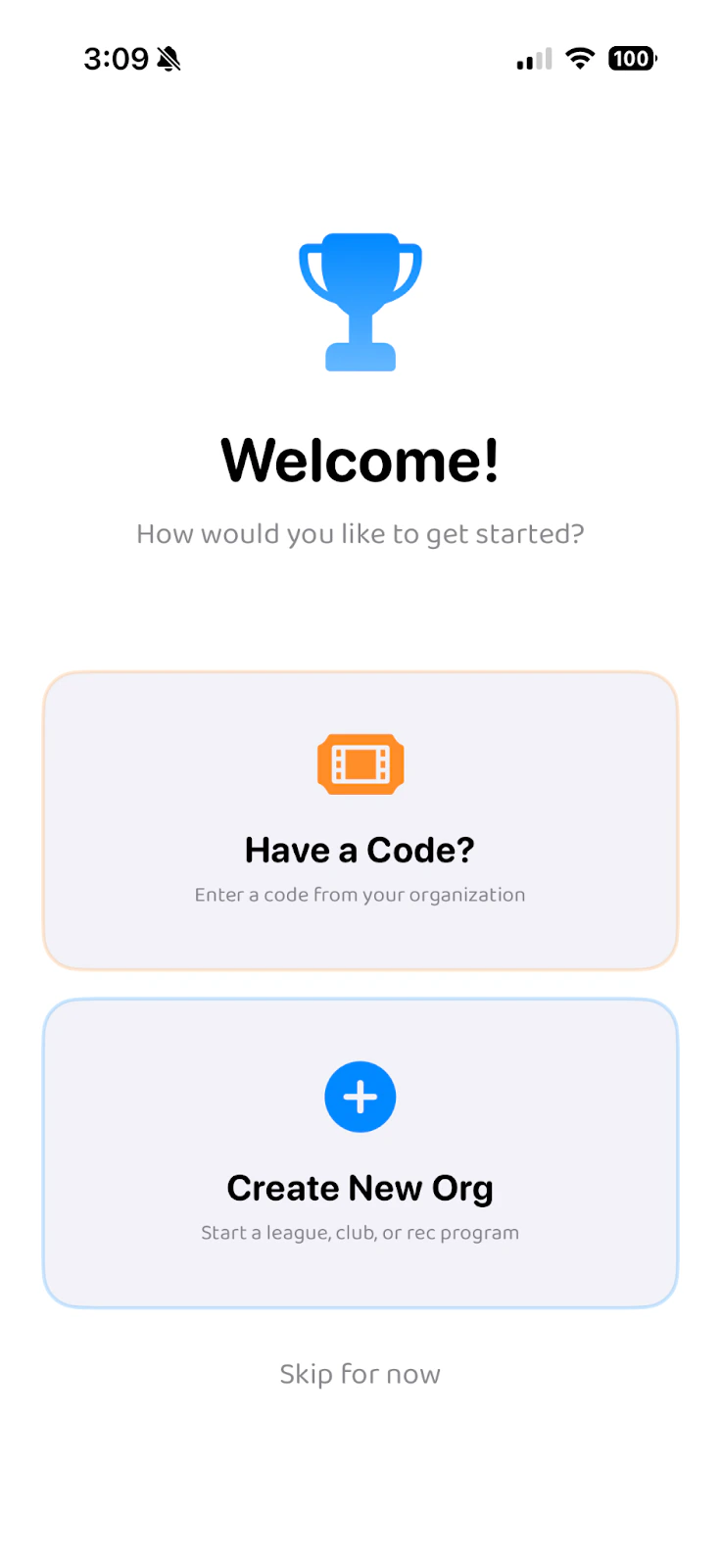 Your child's league or club has already set up an organization on HuddleUp. There are three ways to join:
1. **Invite code** — Your league shared a code (via email, text, or handout). Tap **"Have a Code?"** on the welcome screen
2. **Invite link** — Tap a link shared by your league admin and the app opens directly to the join screen
3. **Search** — Browse for your organization by name from the Teams tab
Most parents will use an invite code — it's the fastest way in.
## Enter the Code
Your child's league or club has already set up an organization on HuddleUp. There are three ways to join:
1. **Invite code** — Your league shared a code (via email, text, or handout). Tap **"Have a Code?"** on the welcome screen
2. **Invite link** — Tap a link shared by your league admin and the app opens directly to the join screen
3. **Search** — Browse for your organization by name from the Teams tab
Most parents will use an invite code — it's the fastest way in.
## Enter the Code
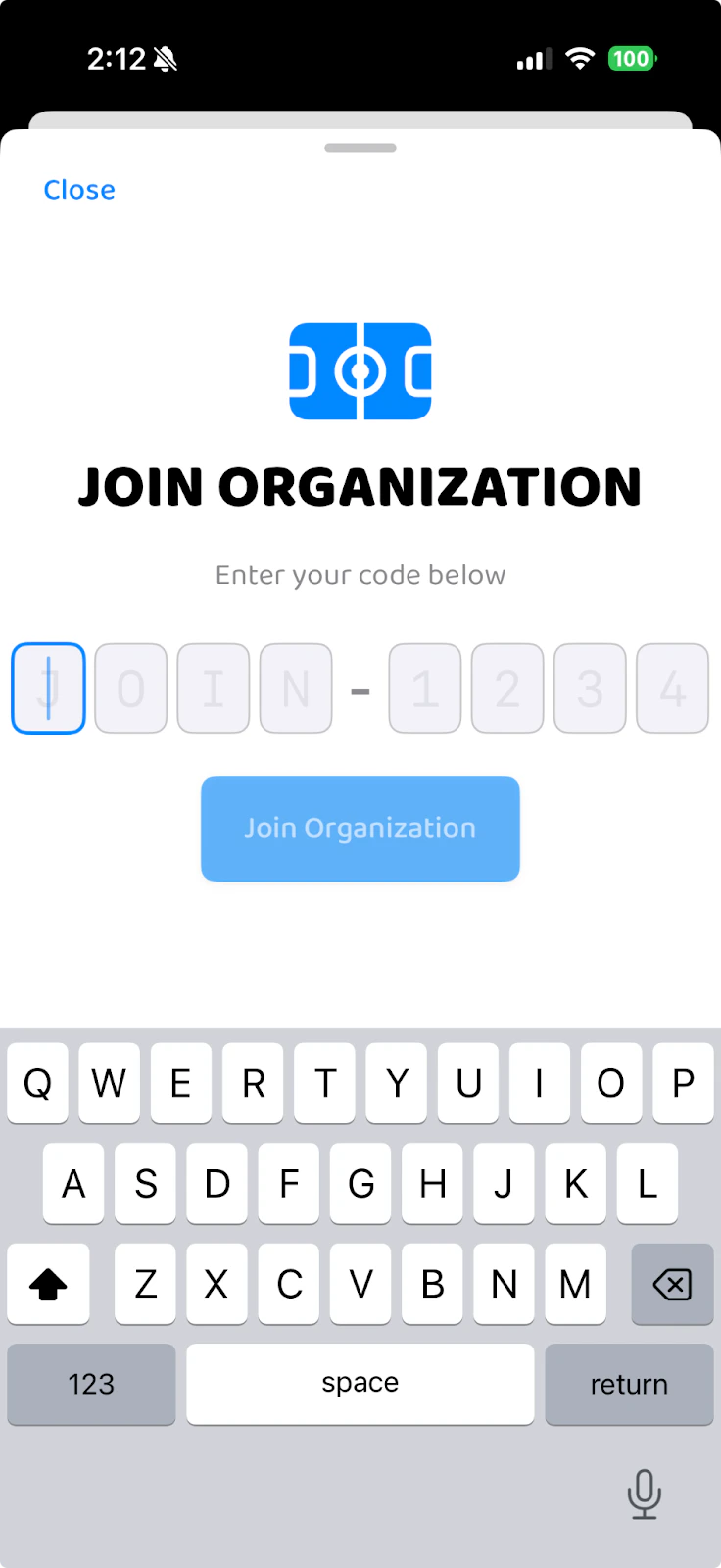 Type in the organization code provided by your league, then tap **"Join Organization"**.
There are three types of codes, each with different permission levels:
* **`JOIN-XXXX`** — For **parents**. Lets you add players, view schedules, RSVP, and chat with your team.
* **`COCH-XXXX`** — For **coaches**. Includes everything parents get, plus the ability to manage teams, create events, and message families.
* **`ADMN-XXXX`** — For **organization administrators**. Full access to manage leagues, teams, rosters, and organization settings.
Your league admin or coach should have shared your code via email, text, or a printed handout. If you don't have one, reach out to your league coordinator.
## Add Your Players
Type in the organization code provided by your league, then tap **"Join Organization"**.
There are three types of codes, each with different permission levels:
* **`JOIN-XXXX`** — For **parents**. Lets you add players, view schedules, RSVP, and chat with your team.
* **`COCH-XXXX`** — For **coaches**. Includes everything parents get, plus the ability to manage teams, create events, and message families.
* **`ADMN-XXXX`** — For **organization administrators**. Full access to manage leagues, teams, rosters, and organization settings.
Your league admin or coach should have shared your code via email, text, or a printed handout. If you don't have one, reach out to your league coordinator.
## Add Your Players
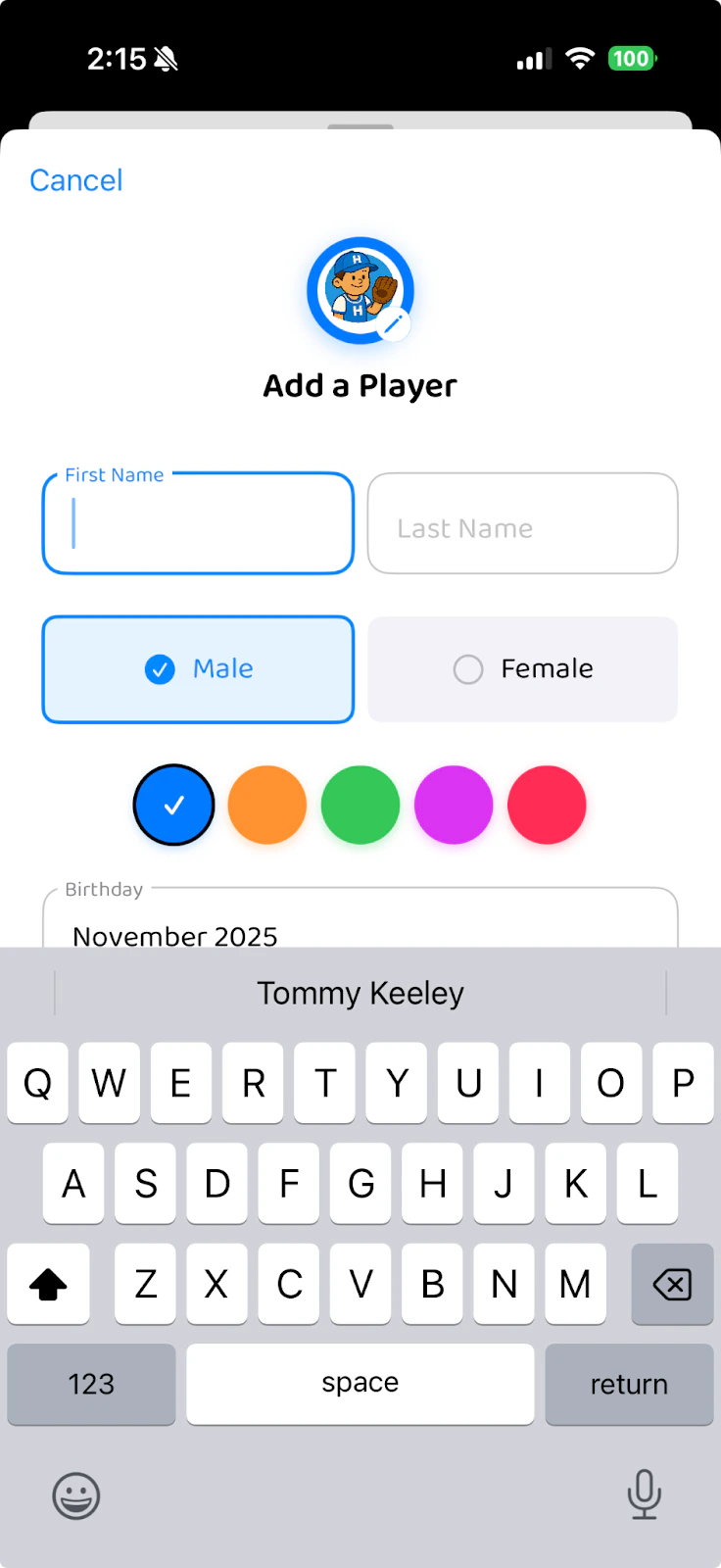 Now you'll add your children to HuddleUp:
1. Enter your child's **first name** and **last name**
2. Select **Male** or **Female**
3. Choose a **color** for this player (blue, orange, green, purple, or pink) — this color will identify their events on the calendar
4. Enter their **birthday**
5. Tap **Save**
After adding a player, you'll see a confirmation: **"Player Added!"**
### Adding Multiple Children
If you have another child in sports, tap **"Add Another Player"** and repeat the process. Each child gets their own color so you can tell their schedules apart at a glance.
Choose different colors for each child. This makes the family calendar much easier to read when you have overlapping schedules.
## Assign Players to Leagues
Now you'll add your children to HuddleUp:
1. Enter your child's **first name** and **last name**
2. Select **Male** or **Female**
3. Choose a **color** for this player (blue, orange, green, purple, or pink) — this color will identify their events on the calendar
4. Enter their **birthday**
5. Tap **Save**
After adding a player, you'll see a confirmation: **"Player Added!"**
### Adding Multiple Children
If you have another child in sports, tap **"Add Another Player"** and repeat the process. Each child gets their own color so you can tell their schedules apart at a glance.
Choose different colors for each child. This makes the family calendar much easier to read when you have overlapping schedules.
## Assign Players to Leagues
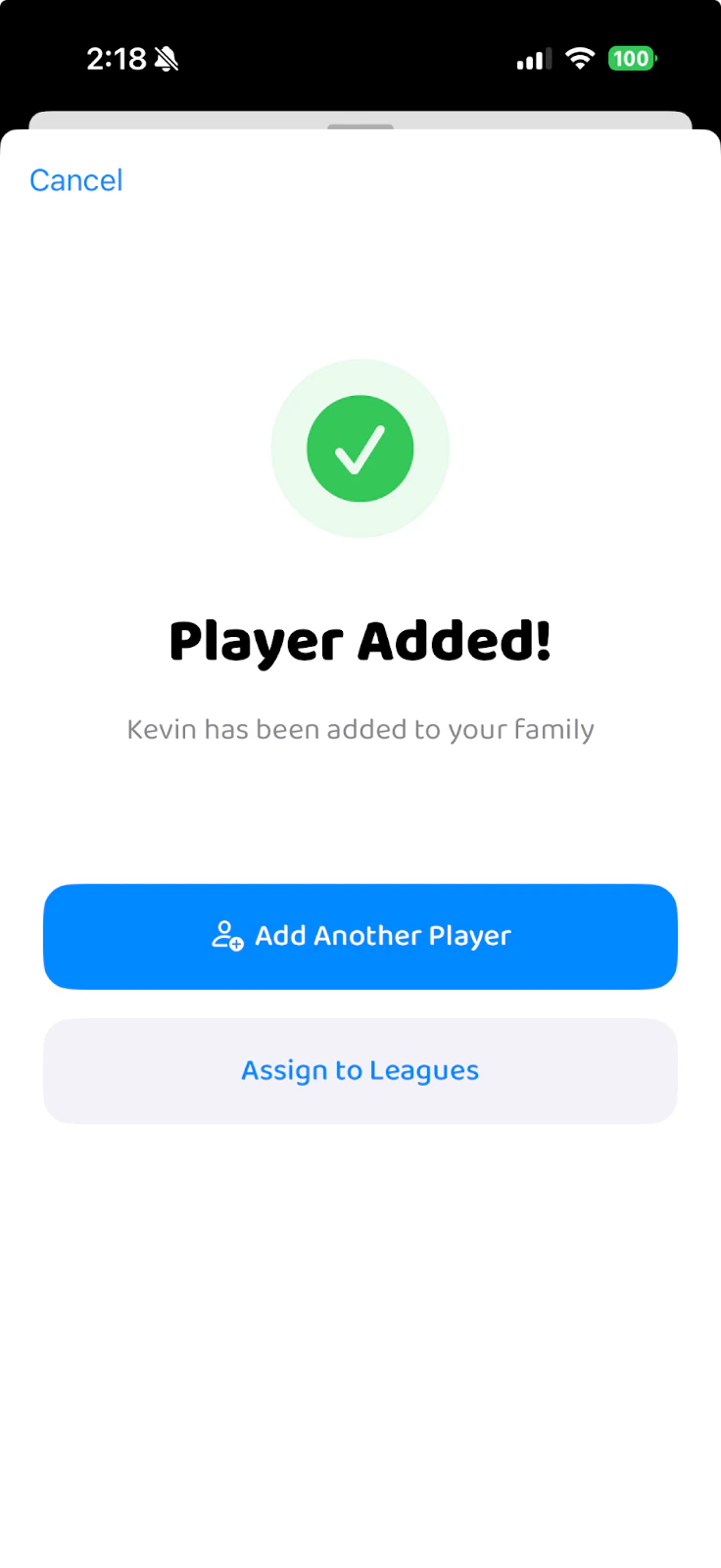 When you're done adding players, tap **"Assign to Leagues"**.
You'll see the leagues and teams available in your organization.
## Select League and Team
When you're done adding players, tap **"Assign to Leagues"**.
You'll see the leagues and teams available in your organization.
## Select League and Team
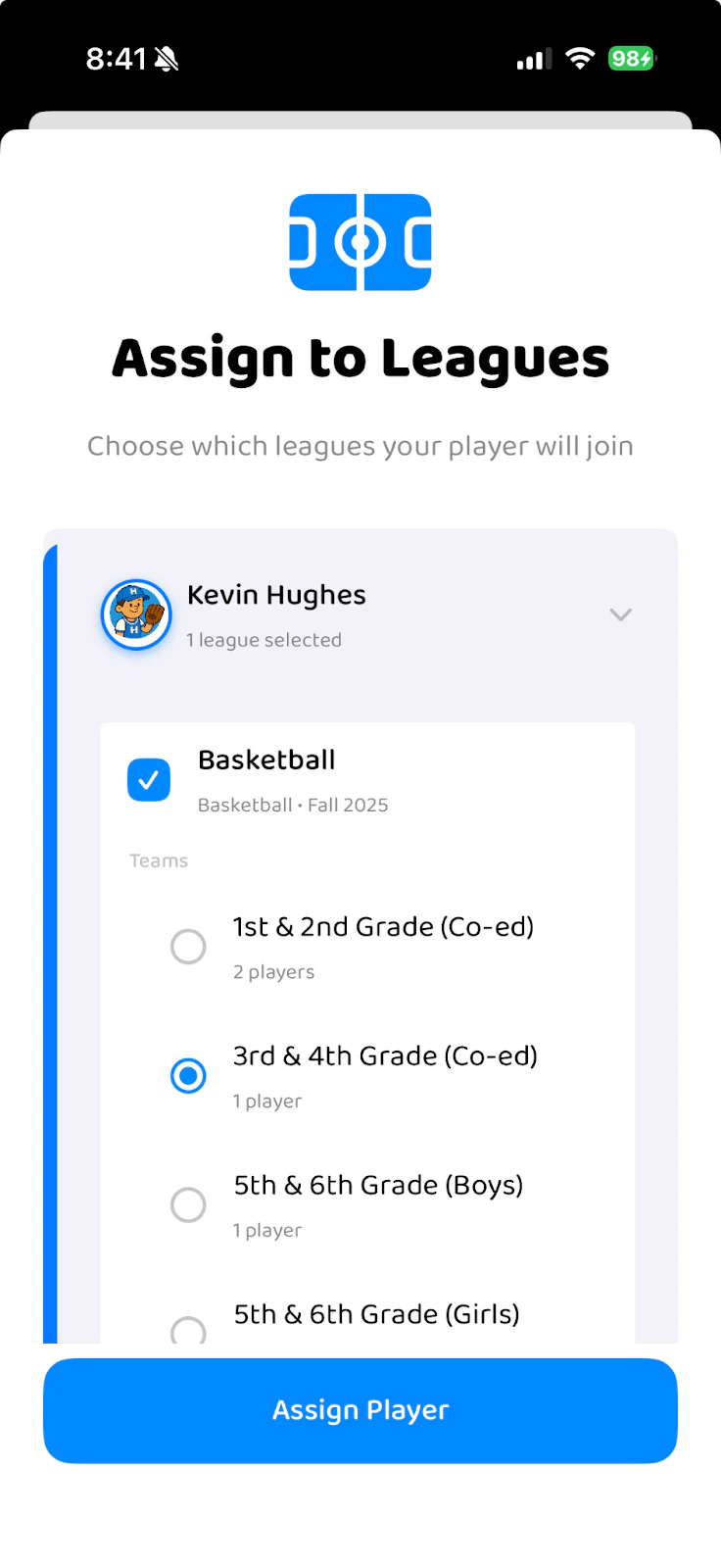 1. Check the box next to your player's **league** (e.g., Basketball)
2. Select their specific **team** (e.g., 3rd & 4th Grade)
3. Tap **"Assign Player"**
Repeat for each child if they're in different leagues or teams.
## Pending Approval
Depending on how your league is set up, your player may need admin approval before they're fully on the team:
* **Pending** — Your registration has been submitted and the league admin is reviewing it
* **Active** — You've been approved. Team events appear on your calendar and you gain access to team chat.
You'll receive a push notification when your player is approved. If approval is taking a while, reach out to your league coordinator.
Some leagues have open registration with no approval step — in that case, your player is active immediately after assignment.
## Explore the Calendar
After setup, you'll land on the **Calendar** tab. This is your home base — every game, practice, and event for all your children appears here, color-coded by player.
### Calendar Views
Tap the date range at the top to switch between:
* **Next 7 Days** — Focus on this week
* **Next 2 Weeks** — Short-term planning view
* **Next Month** — See the full month ahead
### Event Details
Tap any event to see its full details:
* **What** — Event name and type (practice, game, etc.)
* **When** — Date and time
* **Where** — Venue name and address with a **"Get Directions"** button
* **Weather** — Live conditions and game-time forecast for the event location
* **RSVP** — Tap **Going**, **Maybe**, or **Can't Go** to let the coach know
See [Family Calendar](/docs/families/family-calendar) for more details.
## View Your Teams
The **Teams** tab shows:
* **My Players** — Your children and which leagues they're in. Tap **"Manage"** to adjust their league or team assignments
* **Your Organization** — All leagues and teams your players belong to, with rosters
## Team Chat
The **Chats** tab gives each team a dedicated chat channel. This is where you can:
* Ask questions to coaches and other parents
* Share updates with the team
* React to messages by long-pressing on them
* Use slash commands like `/carpool`, `/snack`, and `/poll`
See [Team Messaging](/docs/coaches/messaging) for the full guide.
## Settings
1. Check the box next to your player's **league** (e.g., Basketball)
2. Select their specific **team** (e.g., 3rd & 4th Grade)
3. Tap **"Assign Player"**
Repeat for each child if they're in different leagues or teams.
## Pending Approval
Depending on how your league is set up, your player may need admin approval before they're fully on the team:
* **Pending** — Your registration has been submitted and the league admin is reviewing it
* **Active** — You've been approved. Team events appear on your calendar and you gain access to team chat.
You'll receive a push notification when your player is approved. If approval is taking a while, reach out to your league coordinator.
Some leagues have open registration with no approval step — in that case, your player is active immediately after assignment.
## Explore the Calendar
After setup, you'll land on the **Calendar** tab. This is your home base — every game, practice, and event for all your children appears here, color-coded by player.
### Calendar Views
Tap the date range at the top to switch between:
* **Next 7 Days** — Focus on this week
* **Next 2 Weeks** — Short-term planning view
* **Next Month** — See the full month ahead
### Event Details
Tap any event to see its full details:
* **What** — Event name and type (practice, game, etc.)
* **When** — Date and time
* **Where** — Venue name and address with a **"Get Directions"** button
* **Weather** — Live conditions and game-time forecast for the event location
* **RSVP** — Tap **Going**, **Maybe**, or **Can't Go** to let the coach know
See [Family Calendar](/docs/families/family-calendar) for more details.
## View Your Teams
The **Teams** tab shows:
* **My Players** — Your children and which leagues they're in. Tap **"Manage"** to adjust their league or team assignments
* **Your Organization** — All leagues and teams your players belong to, with rosters
## Team Chat
The **Chats** tab gives each team a dedicated chat channel. This is where you can:
* Ask questions to coaches and other parents
* Share updates with the team
* React to messages by long-pressing on them
* Use slash commands like `/carpool`, `/snack`, and `/poll`
See [Team Messaging](/docs/coaches/messaging) for the full guide.
## Settings
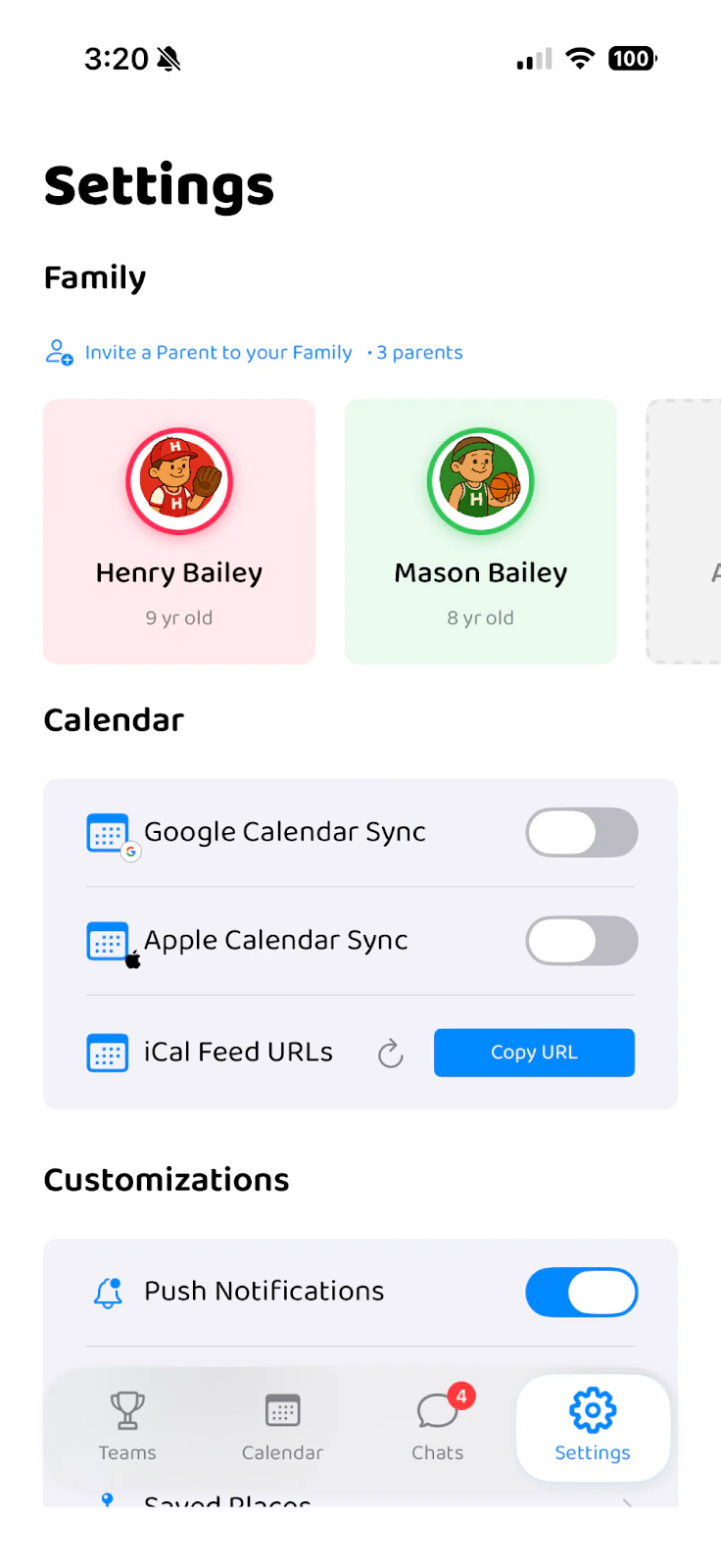 The **Settings** tab is where you manage your account:
### Family
* Add or edit players
* Invite another parent to your family account (see below)
### Calendar Sync
* **Google Calendar Sync** — Sync HuddleUp events to Google Calendar
* **Apple Calendar Sync** — Sync HuddleUp events to Apple Calendar
### Notifications
* **Push Notifications** — Toggle on/off to receive alerts for schedule changes, cancellations, and team messages. See [Notifications](/docs/families/notifications).
### Customizations
* **Dark Mode** — Switch between light and dark themes
## Multi-Parent Households
Both parents or guardians can use HuddleUp for the same family:
1. The first parent sets up the account and adds players (that's what you just did above)
2. Go to **Settings** > **Family**
3. Tap **Invite Parent** and share the invite link with your co-parent
4. The second parent signs up and joins your family
Once connected, both parents:
* See the same players and calendar events
* Can RSVP independently
* Receive their own push notifications
* Have access to all team chats
***
## Need Help?
If you have questions or run into any issues, email us at **[support@huddleup-sports.com](mailto:support@huddleup-sports.com)** or reach out to your league coordinator.
The **Settings** tab is where you manage your account:
### Family
* Add or edit players
* Invite another parent to your family account (see below)
### Calendar Sync
* **Google Calendar Sync** — Sync HuddleUp events to Google Calendar
* **Apple Calendar Sync** — Sync HuddleUp events to Apple Calendar
### Notifications
* **Push Notifications** — Toggle on/off to receive alerts for schedule changes, cancellations, and team messages. See [Notifications](/docs/families/notifications).
### Customizations
* **Dark Mode** — Switch between light and dark themes
## Multi-Parent Households
Both parents or guardians can use HuddleUp for the same family:
1. The first parent sets up the account and adds players (that's what you just did above)
2. Go to **Settings** > **Family**
3. Tap **Invite Parent** and share the invite link with your co-parent
4. The second parent signs up and joins your family
Once connected, both parents:
* See the same players and calendar events
* Can RSVP independently
* Receive their own push notifications
* Have access to all team chats
***
## Need Help?
If you have questions or run into any issues, email us at **[support@huddleup-sports.com](mailto:support@huddleup-sports.com)** or reach out to your league coordinator.