> ## Documentation Index
> Fetch the complete documentation index at: https://huddleup-sports.com/docs/llms.txt
> Use this file to discover all available pages before exploring further.
# HuddleUp Returning Parent Guide
> Step-by-step guide for returning HuddleUp Sports parents joining a new season. Sign back in, add new players if needed, and assign your children to updated leagues and teams.
Already have a HuddleUp account from a previous season? Here's how to get set up for a new season.
## Install or Update the App
 If you don't have HuddleUp installed, download it from the [iOS App Store](https://apps.apple.com/us/app/huddleup-sports/id6752121332) or [Google Play](https://play.google.com/store/apps/details?id=com.huddleup.app).
If you already have it installed, make sure it's updated to the latest version.
## Sign In
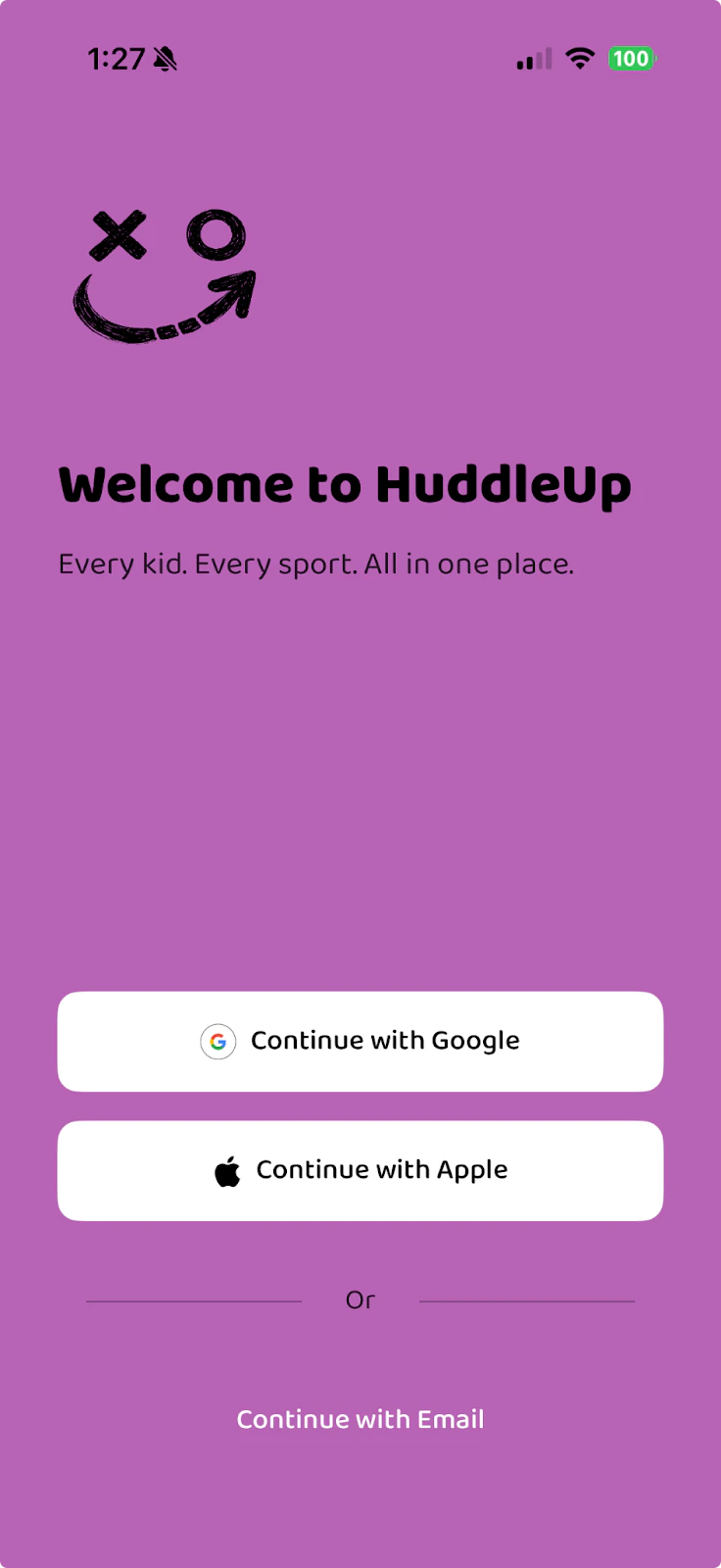
Open HuddleUp and sign in with the same account you used before:
* **Continue with Google**
* **Continue with Apple**
* **Continue with Email**
Your existing players and account data will still be there.
Use the same sign-in method as before (Google, Apple, or Email). If you sign in with a different method, it will create a new account.
## Add New Players (If Needed)
If you don't have HuddleUp installed, download it from the [iOS App Store](https://apps.apple.com/us/app/huddleup-sports/id6752121332) or [Google Play](https://play.google.com/store/apps/details?id=com.huddleup.app).
If you already have it installed, make sure it's updated to the latest version.
## Sign In
Open HuddleUp and sign in with the same account you used before:
* **Continue with Google**
* **Continue with Apple**
* **Continue with Email**
Your existing players and account data will still be there.
Use the same sign-in method as before (Google, Apple, or Email). If you sign in with a different method, it will create a new account.
## Add New Players (If Needed)
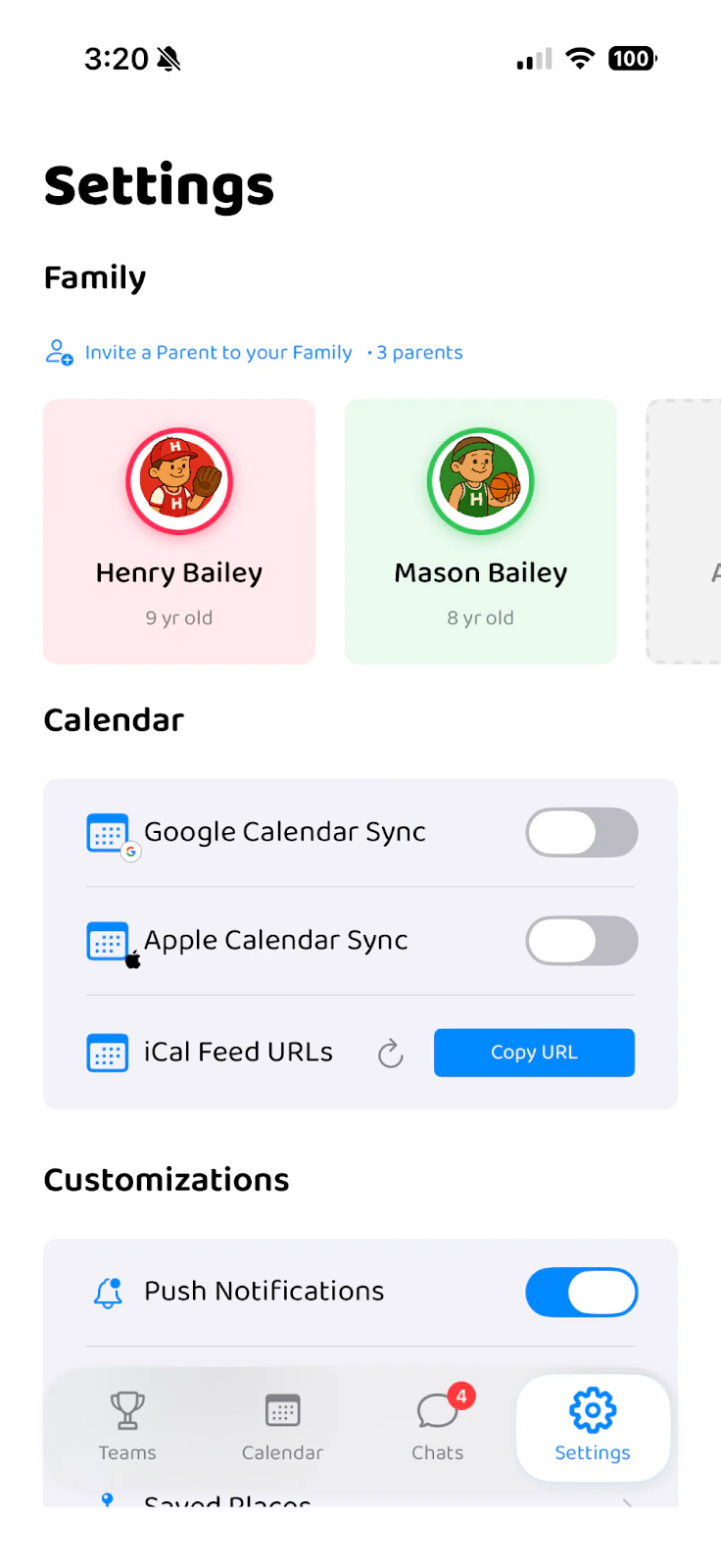 If you have a new child to add:
1. Go to the **Settings** tab
2. Tap **"Add Player"** under the Family section
3. Enter their name, select a color, and save
Your existing players will already be listed.
## Assign Players to the New Season
1. Navigate to the **Teams** tab
2. Tap the **+** button in the top right corner
3. Select **"Assign Players"**
This opens the league assignment screen.
## Select League and Team
If you have a new child to add:
1. Go to the **Settings** tab
2. Tap **"Add Player"** under the Family section
3. Enter their name, select a color, and save
Your existing players will already be listed.
## Assign Players to the New Season
1. Navigate to the **Teams** tab
2. Tap the **+** button in the top right corner
3. Select **"Assign Players"**
This opens the league assignment screen.
## Select League and Team
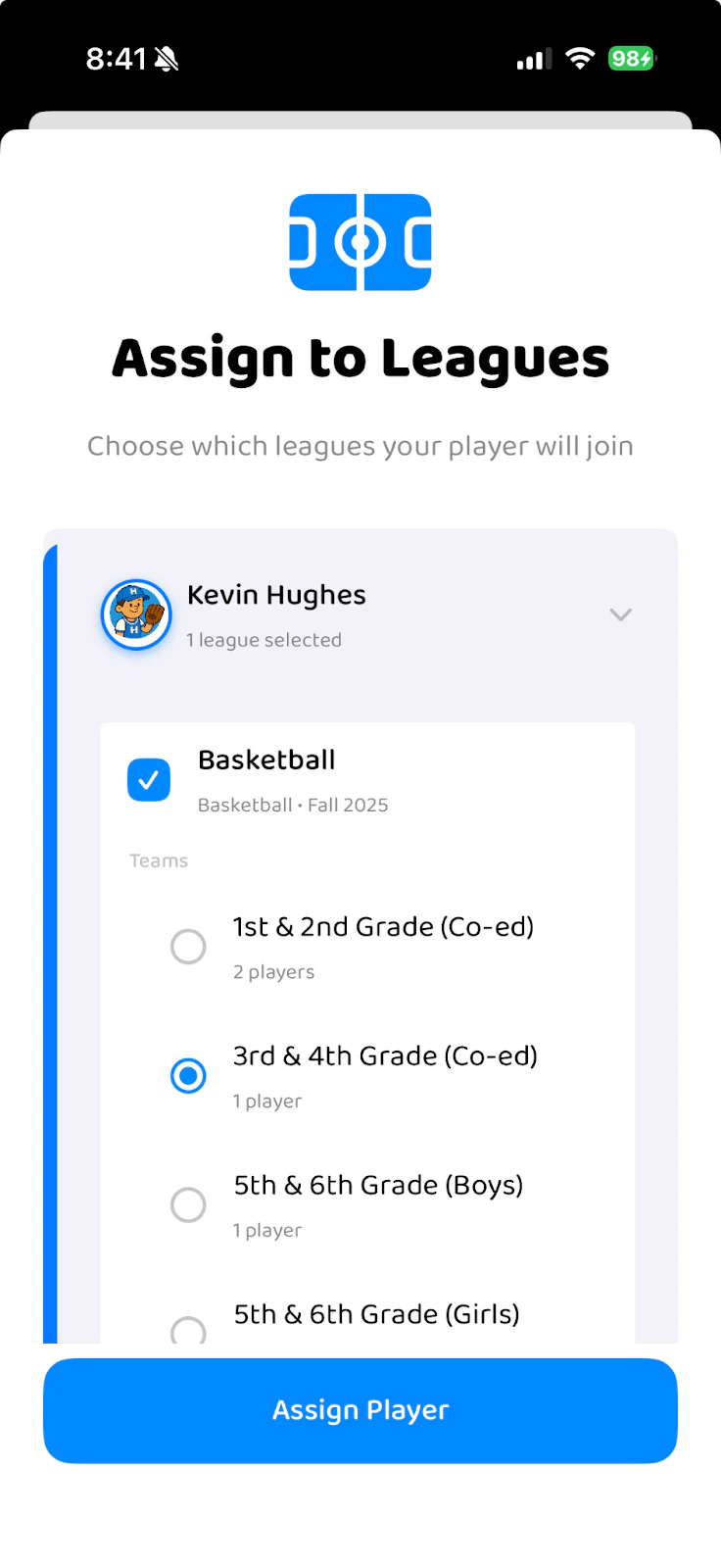 1. Select your player
2. Check the box next to their **league** (e.g., Basketball)
3. Select their specific **team** for the new season
4. Tap **"Assign Player"**
Once assigned:
* The new league and team will appear in your **Teams** tab
* Your player's events will populate the **Calendar**
* You'll be added to the **Chat** channel for that team
If your child is changing teams or sports for the new season, just assign them to the new league/team. Their previous season data stays in your account history.
***
## Need Help?
If you have questions or run into any issues, email us at **[support@huddleup-sports.com](mailto:support@huddleup-sports.com)** or reach out to your league coordinator.
1. Select your player
2. Check the box next to their **league** (e.g., Basketball)
3. Select their specific **team** for the new season
4. Tap **"Assign Player"**
Once assigned:
* The new league and team will appear in your **Teams** tab
* Your player's events will populate the **Calendar**
* You'll be added to the **Chat** channel for that team
If your child is changing teams or sports for the new season, just assign them to the new league/team. Their previous season data stays in your account history.
***
## Need Help?
If you have questions or run into any issues, email us at **[support@huddleup-sports.com](mailto:support@huddleup-sports.com)** or reach out to your league coordinator.