

Install the App
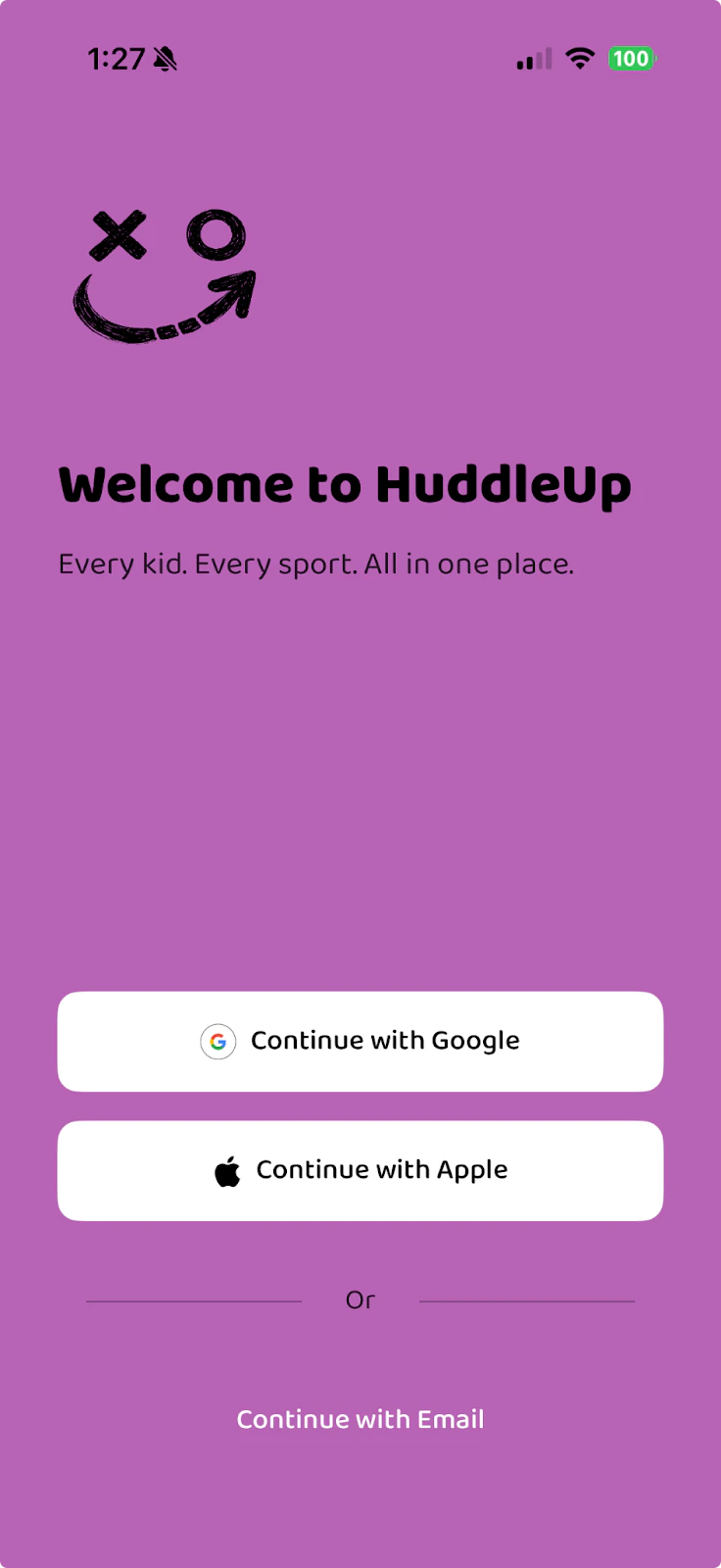
Create Your Account
Open the app and sign up using one of these options:- Continue with Google — Use your Google account
- Continue with Apple — Use your Apple ID
- Continue with Email — Sign up with any email address
Remember which sign-in method you choose — you’ll need to use the same one each time you log in. Signing in with a different method creates a new account.
Join Your Organization
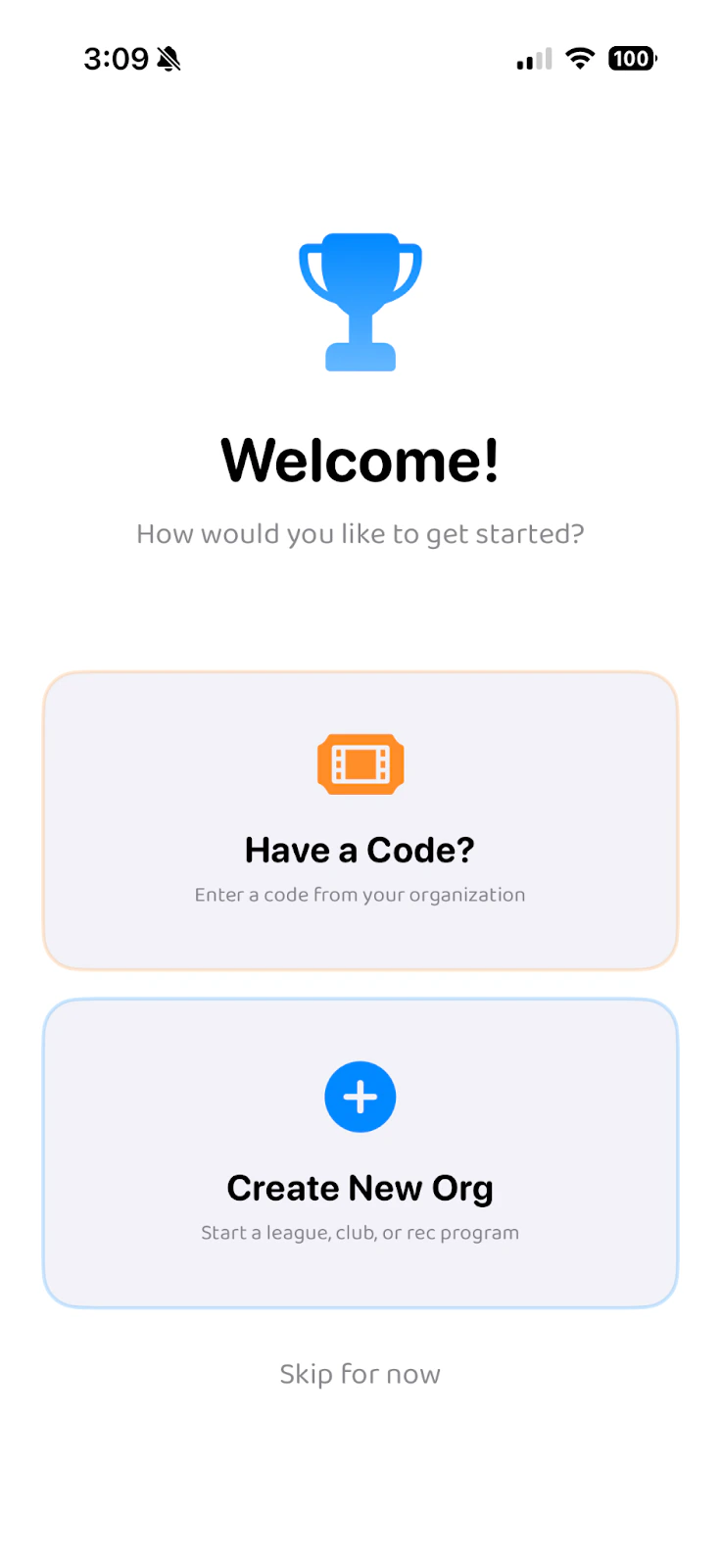
- Invite code — Your league shared a code (via email, text, or handout). Tap “Have a Code?” on the welcome screen
- Invite link — Tap a link shared by your league admin and the app opens directly to the join screen
- Search — Browse for your organization by name from the Teams tab
Enter the Code
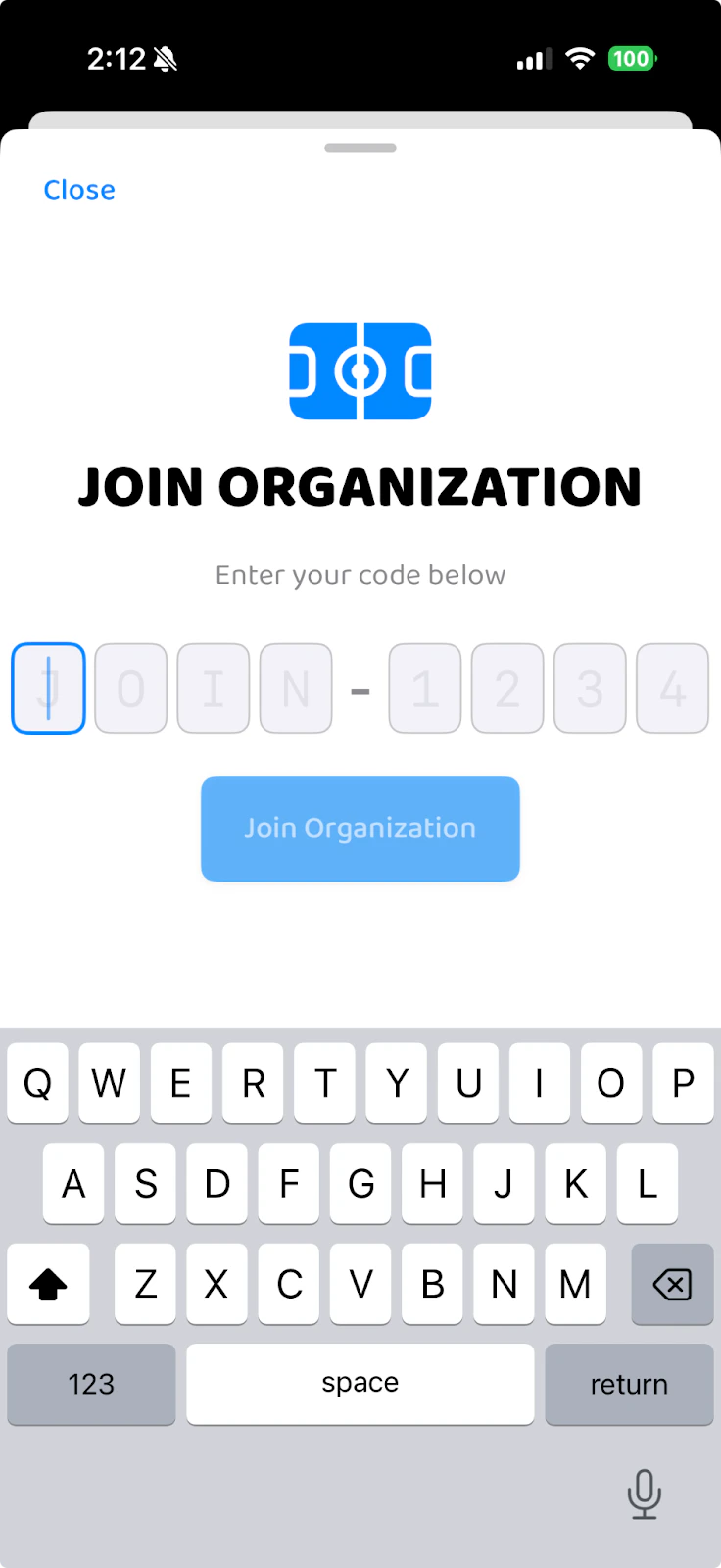
JOIN-XXXX— For parents. Lets you add players, view schedules, RSVP, and chat with your team.COCH-XXXX— For coaches. Includes everything parents get, plus the ability to manage teams, create events, and message families.ADMN-XXXX— For organization administrators. Full access to manage leagues, teams, rosters, and organization settings.
Add Your Players
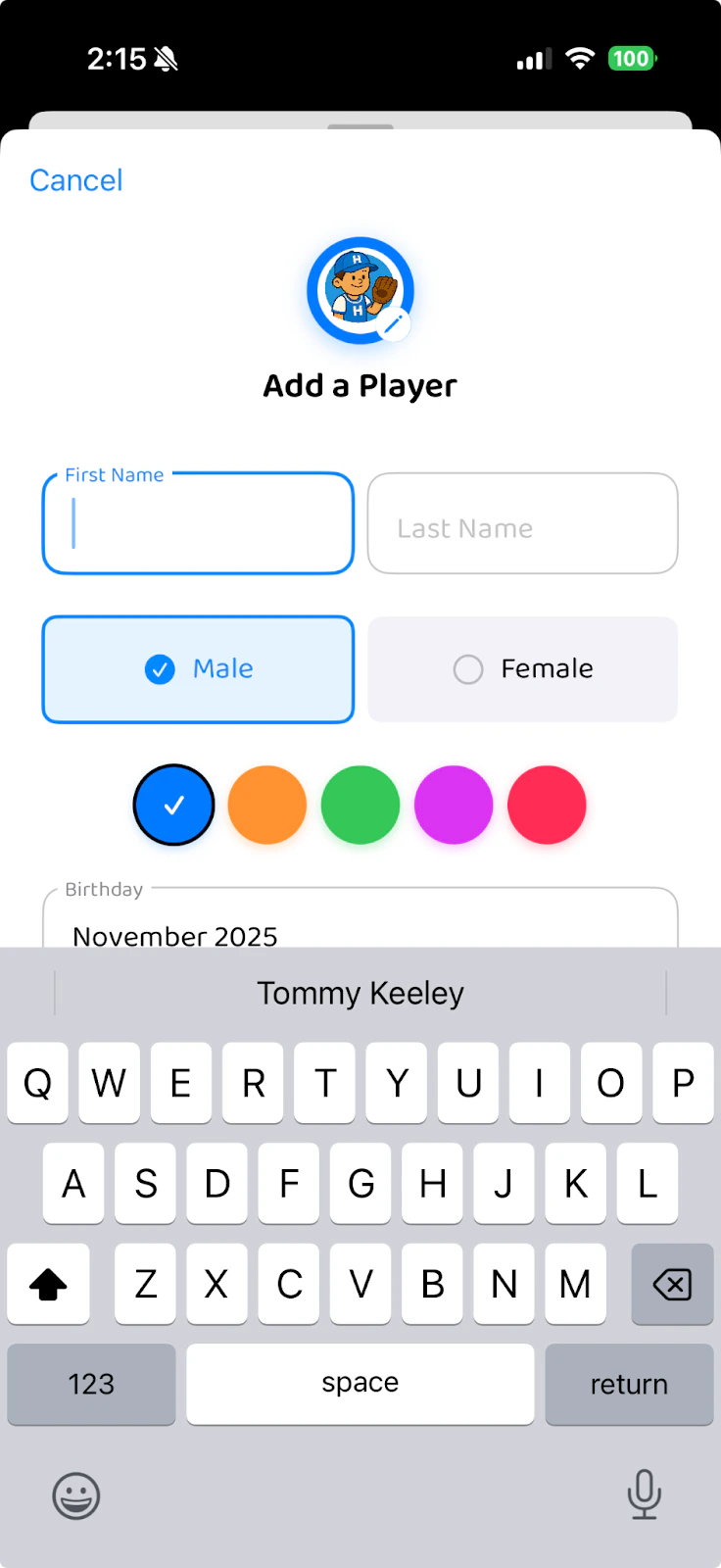
- Enter your child’s first name and last name
- Select Male or Female
- Choose a color for this player (blue, orange, green, purple, or pink) — this color will identify their events on the calendar
- Enter their birthday
- Tap Save
Adding Multiple Children
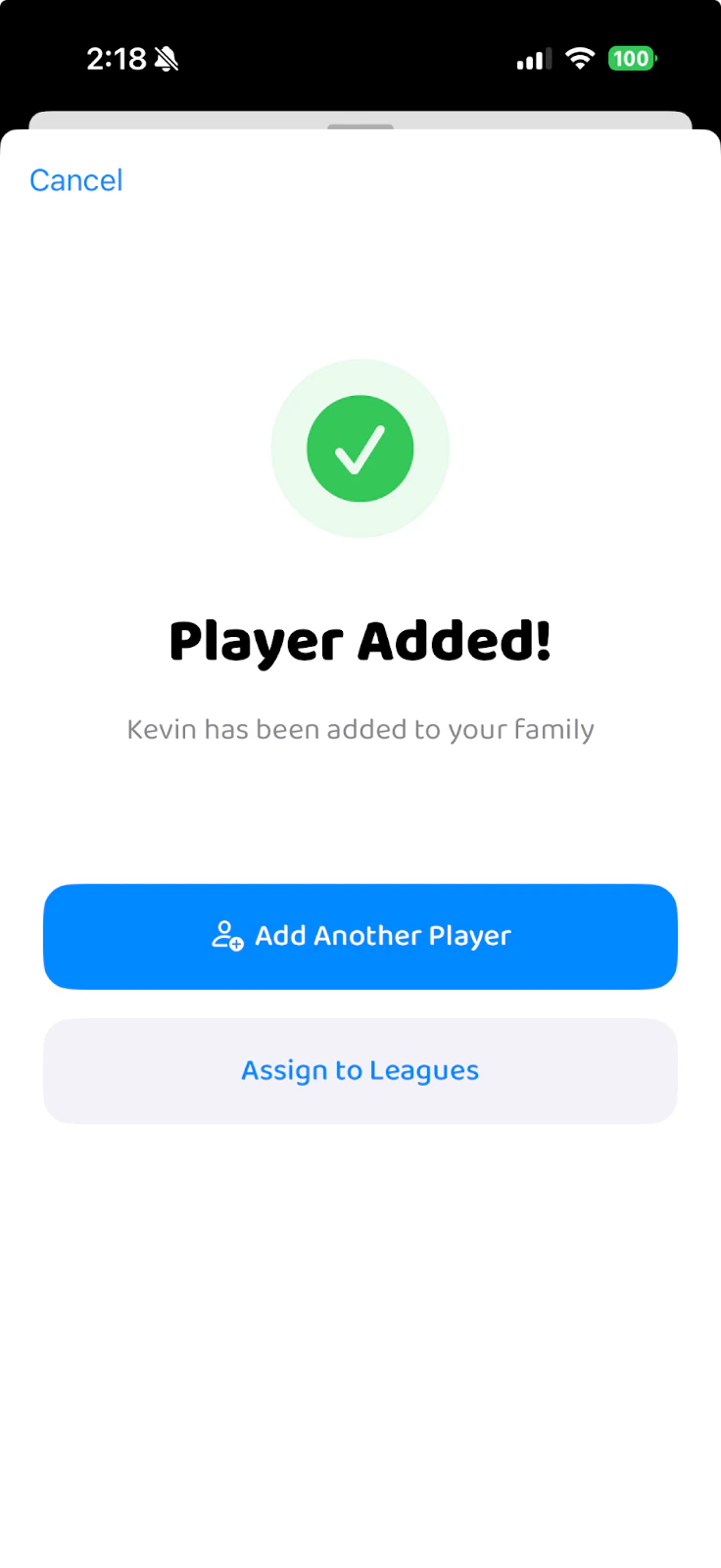
If you have another child in sports, tap “Add Another Player” and repeat the process. Each child gets their own color so you can tell their schedules apart at a glance.Assign Players to Leagues
Select League and Team
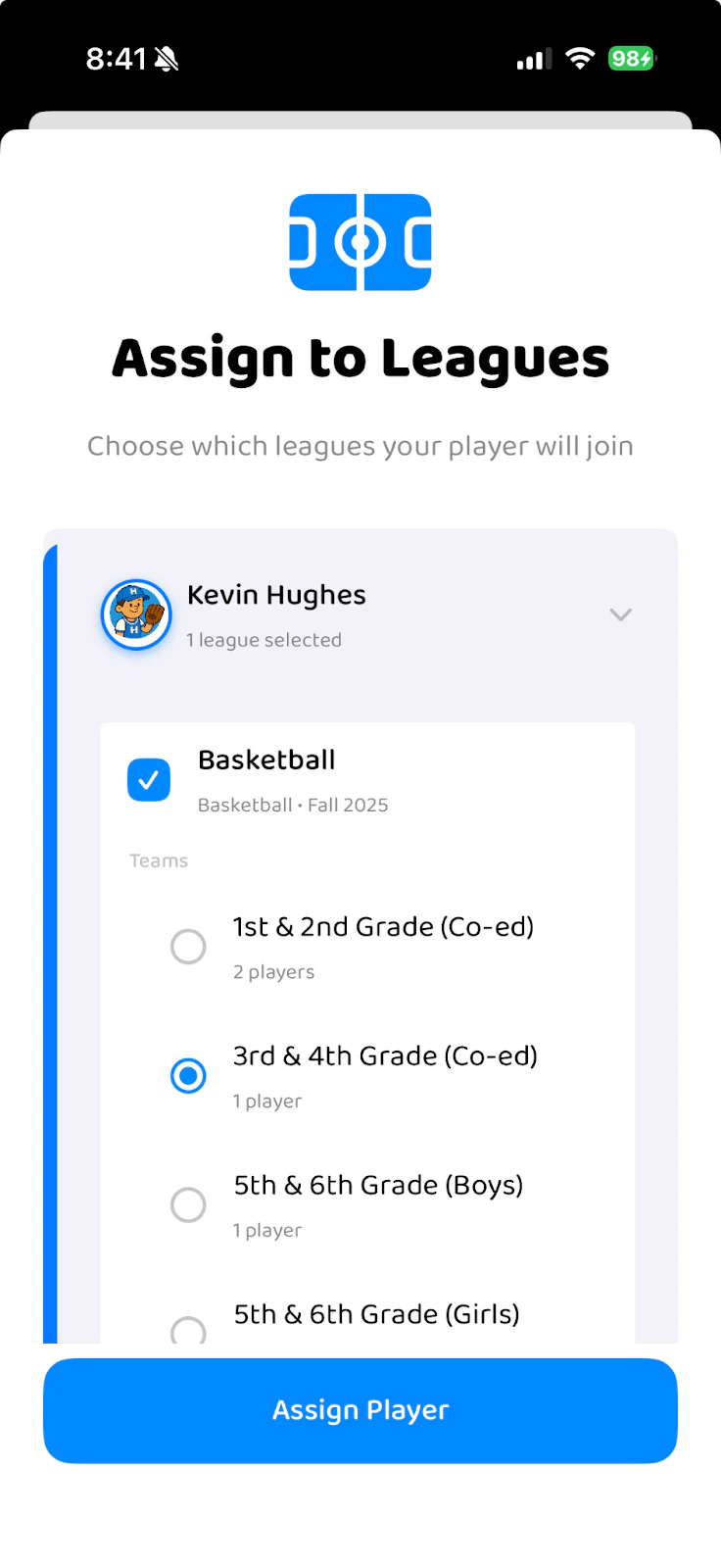
- Check the box next to your player’s league (e.g., Basketball)
- Select their specific team (e.g., 3rd & 4th Grade)
- Tap “Assign Player”
Pending Approval
Depending on how your league is set up, your player may need admin approval before they’re fully on the team:- Pending — Your registration has been submitted and the league admin is reviewing it
- Active — You’ve been approved. Team events appear on your calendar and you gain access to team chat.
Some leagues have open registration with no approval step — in that case, your player is active immediately after assignment.
Explore the Calendar
After setup, you’ll land on the Calendar tab. This is your home base — every game, practice, and event for all your children appears here, color-coded by player.Calendar Views
Tap the date range at the top to switch between:- Next 7 Days — Focus on this week
- Next 2 Weeks — Short-term planning view
- Next Month — See the full month ahead
Event Details
Tap any event to see its full details:- What — Event name and type (practice, game, etc.)
- When — Date and time
- Where — Venue name and address with a “Get Directions” button
- Weather — Live conditions and game-time forecast for the event location
- RSVP — Tap Going, Maybe, or Can’t Go to let the coach know
View Your Teams
The Teams tab shows:- My Players — Your children and which leagues they’re in. Tap “Manage” to adjust their league or team assignments
- Your Organization — All leagues and teams your players belong to, with rosters
Team Chat
The Chats tab gives each team a dedicated chat channel. This is where you can:- Ask questions to coaches and other parents
- Share updates with the team
- React to messages by long-pressing on them
- Use slash commands like
/carpool,/snack, and/poll
Settings
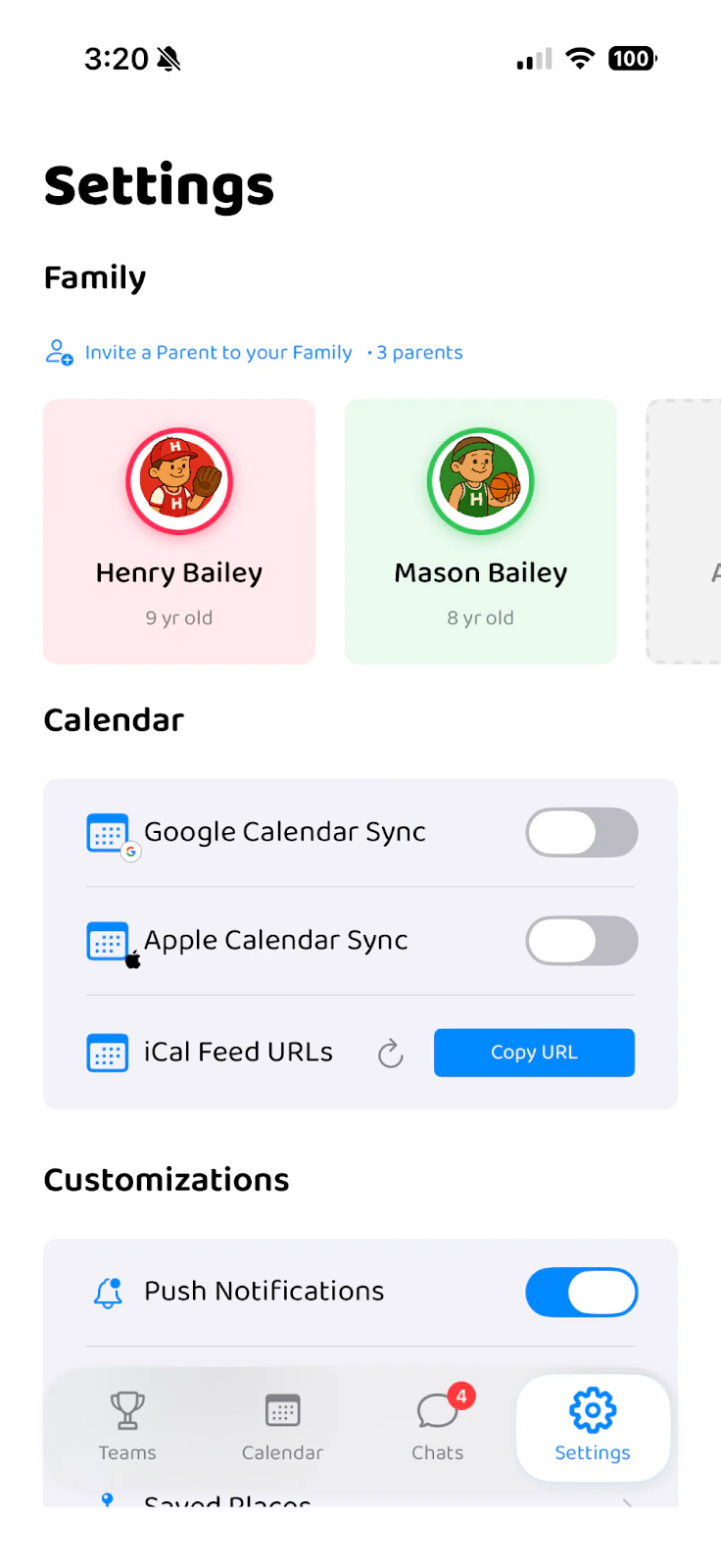
Family
- Add or edit players
- Invite another parent to your family account (see below)
Calendar Sync
- Google Calendar Sync — Sync HuddleUp events to Google Calendar
- Apple Calendar Sync — Sync HuddleUp events to Apple Calendar
Notifications
- Push Notifications — Toggle on/off to receive alerts for schedule changes, cancellations, and team messages. See Notifications.
Customizations
- Dark Mode — Switch between light and dark themes
Multi-Parent Households
Both parents or guardians can use HuddleUp for the same family:- The first parent sets up the account and adds players (that’s what you just did above)
- Go to Settings > Family
- Tap Invite Parent and share the invite link with your co-parent
- The second parent signs up and joins your family
- See the same players and calendar events
- Can RSVP independently
- Receive their own push notifications
- Have access to all team chats